
Bài giảng điện tử bao gồm một tệp âm thanh và một bộ các slide. Tại đây, bạn sẽ tìm thấy thông tin về các định dạng tệp và phần mềm gợi ý để chuẩn bị bài giảng. Nếu bạn có bất kỳ câu hỏi nào, vui lòng liên hệ với Tiến sĩ Robles-De-La-Torre . Các câu hỏi của bạn sẽ được thêm vào danh sách Các câu hỏi thường gặp (FAQ).
Định dạng cho tập tin âm thanh
Định dạng RealAudio / RealMedia (sau đó được ký hiệu trong tài liệu này là ” RM “) từ RealNetworks, Inc. là thuận tiện nhất cho các bài giảng. Người ta thấy rằng, đối với các định dạng phổ biến khác như MPEG-3, các chương trình miễn phí có sẵn để ghi lại quá cồng kềnh để sử dụng hoặc chỉ bị hạn chế ở một số hệ điều hành nhất định.
Ngược lại, RealAudio / RealMedia có các chương trình đơn giản, miễn phí để ghi (Helix Producer) và phát các tệp âm thanh (RealPlayer 8, RealOne player). Các chương trình này cũng có sẵn cho Linux, Mac (lên đến OS 9) và Windows. Tôi đã thử nghiệm phiên bản Windows 98 của các chương trình. Trong hướng dẫn sử dụng được cung cấp bên dưới cho các chương trình này, có thể có một số khác biệt nhỏ trong giao diện người dùng cho các phiên bản chạy trong hệ điều hành khác.
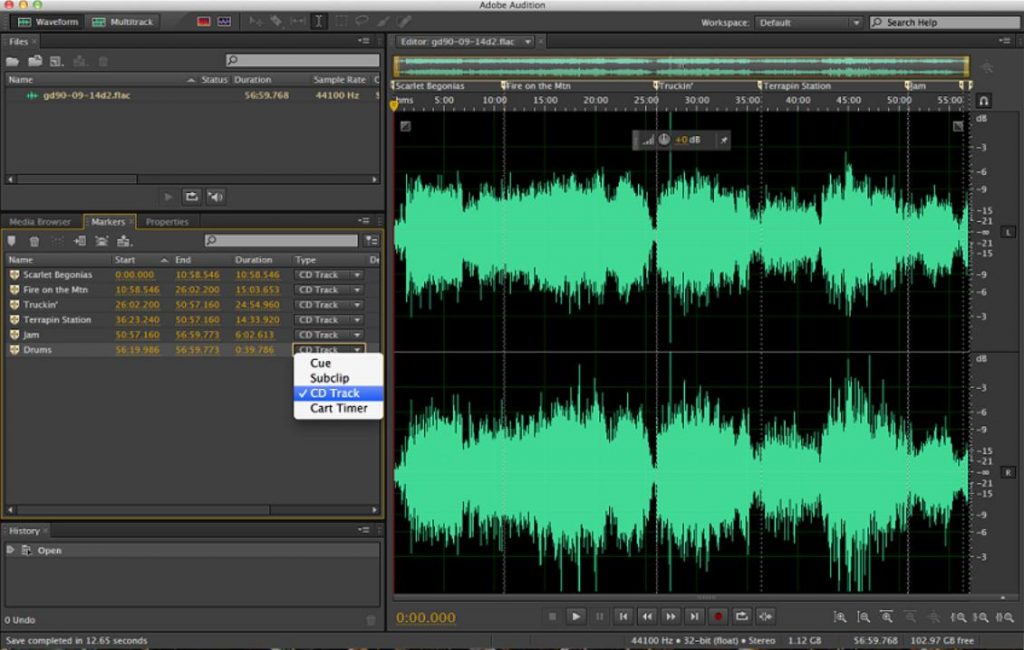
Chương trình miễn phí được đề xuất để ghi lại các tệp RM, Helix Producer, có hạn chế sau: nó không cho phép tạm dừng / chỉnh sửa bản ghi. Việc chuẩn bị kỹ lưỡng cho bài giảng sẽ giảm thiểu nhu cầu tạm dừng / tái bản. Ngoài ra, mục tiêu chính của các bài giảng là giống như một buổi hội thảo đại học thông thường. Như bạn đã biết, những cuộc hội thảo như vậy không bao giờ là hoàn hảo. Trừ khi bạn có thời gian và nguồn lực, thì mục tiêu thu âm chất lượng phòng thu là không cần thiết. Các thành viên của xã hội quan tâm đến những gì bạn nói. Tập trung vào nội dung bài giảng của bạn.
Nếu bạn thích sử dụng phần mềm khác để soạn giảng cũng được. Nếu bạn làm như vậy, vui lòng lưu phiên bản cuối cùng của bài giảng ở định dạng RM. Nếu phần mềm của bạn không có tùy chọn đầu ra này, bạn có thể lưu bài giảng ở định dạng WAV và sau đó sử dụng chương trình ghi âm miễn phí từ RealNetworks (Helix Producer) để chuyển đổi tệp sang RM.
Về nguyên tắc, định dạng RM và Helix Producer giúp đưa video vào bài giảng. Đây là một khả năng cần có trong tương lai.
Cuối cùng, như xảy ra trong tất cả các dự án đáng giá, các vấn đề kỹ thuật nhỏ sẽ được mong đợi. Chúng tôi sẽ giải quyết chúng khi chúng xuất hiện.
Định dạng của trược
Với tính khả dụng rộng rãi của nó, các slide nên được chuẩn bị ở định dạng Acrobat PDF. Bằng cách này, bạn có thể sử dụng phần mềm yêu thích của mình để chuẩn bị các trang trình bày, sau đó kết xuất chúng thành tệp PDF. Bạn nên chuẩn bị các trang trình bày sao cho cần cuộn tối thiểu để xem chúng ở chế độ toàn màn hình. Ví dụ, các trang trình bày có thể được đặt gần góc trên bên trái của mỗi trang.
Đề nghị quy trình chuẩn bị một thiết bị điện tử
- Soạn bài giảng và in chúng.
- Chuẩn bị các slide. Đánh số slide tuần tự để giúp giữ tính đồng bộ với bài giảng đã ghi.
- Kết xuất các trang chiếu ở định dạng PDF và in chúng.
- Tập lại bài giảng.
- Ghi lại bài giảng. Sử dụng các slide / ghi chú đã in để bắt nhịp bài giảng. Khi thay đổi các trang chiếu, hãy nói số của trang chiếu tiếp theo.
- Tải lên âm thanh bài giảng và các slide PDF vào máy chủ bài giảng.
Quy trình chung nghe an điện tử
- Tải tệp bài giảng và các slide vào máy tính.
- Đóng tất cả các ứng dụng.
- Mở các trang trình bày bằng Acrobat Reader hoặc in chúng, bất cứ điều gì tốt nhất cho bạn.
- Phát bài giảng trong nền trong khi đọc các trang chiếu.
Tải xuống – Cài đặt phần mềm thích hợp để ghi và phát Lectures
Phần mềm ghi hình (Helix Real Producer):
- Tải xuống phiên bản Helix Producer chạy trong hệ điều hành của máy tính bạn định sử dụng (Windows, Mac, Linux, Solaris). Điều quan trọng là tải phần mềm xuống máy tính có kết nối Internet nhanh và các tài nguyên hệ thống ở đây.
- Trong trang tải xuống này, bạn sẽ tìm thấy hướng dẫn tải xuống / cài đặt đầy đủ. Có hai phiên bản của Helix Producer. Tải xuống Helix Producer Basic miễn phí (liên kết ở cuối trang tải xuống). Sau khi tải xuống hoàn tất, vui lòng cài đặt phần mềm.
Người dùng: Có hai phiên bản của trình phát:
- Phiên bản RealPlayer 8 nó chạy trên Windows 98 trở lên, Linux / UNIX và Mac OS lên đến phiên bản 9. Đây là phiên bản cũ hơn, đơn giản hơn nhưng đầy đủ chức năng của trình phát. Tôi muốn khuyên bạn nên sử dụng phiên bản này
- Người dùng RealOne nó chạy trên Windows 95/98 / ME / 2000 / XP. Mac OS X không được hỗ trợ. Không rõ liệu có phiên bản cho Linux / UNIX hay không, vì các liên kết tải xuống cho các hệ thống này dẫn đến các trang tương tự được truy cập khi tải xuống RealPlayer 8. Trong mọi trường hợp, các liên kết này được đưa ra bên dưới. RealOne là phiên bản mới nhất của trình phát RealNetworks. Nó hoạt động tốt, nhưng nó phức tạp hơn để sử dụng so với Real Player 8. Ví dụ, nó bao gồm trình duyệt web và các chương trình khác.
Kiểm tra phần mềm người dùng
Tải xuống tệp âm thanh sau từ trang web của Hội:
Trình duyệt của bạn sẽ nhắc bạn tải xuống tệp âm thanh vào máy tính của bạn. Tải xuống tệp, mở tệp từ menu Tệp trong trình phát rồi nghe tệp đó. Tệp cũng có thể được tải và phát tự động. Điều quan trọng là phải tải tệp vào máy của bạn, nếu không bạn sẽ bị mất âm thanh do lưu lượng mạng nếu trình phát mở tệp từ xa.
Hướng dẫn cơ bản sử dụng Helix Producer ghi hình ảnh
Hướng dẫn này được chuẩn bị cho phiên bản Windows 98 của chương trình. Các nút và tùy chọn menu có thể hơi khác đối với các hệ điều hành khác.
- Kết nối và định cấu hình micrô và loa để sử dụng với máy tính của bạn. Bạn cũng sẽ cần một card âm thanh. Hầu hết các máy tính đều có một cài đặt.
- Đóng tất cả các chương trình. Khởi động Trình sản xuất Helix.
- Trong cửa sổ chính, nhấp vào “Thiết bị”, sau đó chọn thiết bị đầu vào từ danh sách có sẵn. Các tùy chọn hiển thị trong danh sách này tương ứng với phần cứng âm thanh được cài đặt trên máy tính của bạn.
- Có hai đồ họa, chỉ báo mức âm thanh đầu vào trong cửa sổ chính của chương trình. Các giá trị hiển thị trong các chỉ báo sẽ tuân theo âm thanh đầu vào. Nếu bạn nói ở micrô và các chỉ báo không thay đổi, hãy kiểm tra các điều khiển âm lượng của hệ điều hành cho micrô của bạn. Nó có thể bị vô hiệu hóa
- Nếu các chỉ báo mức âm thanh bão hòa, hãy điều chỉnh âm lượng hoặc mức tăng trong các điều khiển micrô của bạn.
- Đặt chất lượng ghi âm. Trên cửa sổ chính, nhấp vào nút “Đối tượng”. Một cửa sổ khác sẽ được mở. Ở đây, có một danh sách các tùy chọn trong hộp có tiêu đề “Đối tượng trong công việc”. Chọn và xóa tất cả các tùy chọn, ngoại trừ tùy chọn có tên “28K Dial Up”. Nếu không có tùy chọn nào được liệt kê trong “Đối tượng đang làm việc”, hãy chọn “Quay số 28K” từ danh sách được đưa ra trong hộp có tiêu đề “Mẫu” và thêm tùy chọn đó vào hộp “Đối tượng đang làm việc”. Đóng cửa sổ và quay lại cửa sổ chính.
- Đặt tên cho tệp đầu ra. Trong tùy chọn “Tệp” trong thanh menu chính, chọn “Thêm Đích Tệp”. Nhập tên tệp và nhấn OK. Tên tệp sẽ được liệt kê trong “Đích” ở cửa sổ chính.
- Bạn đã sẵn sàng để bắt đầu ghi. Nhấn nút “Mã hóa” để bắt đầu.
- Helix Producer không cho phép tạm dừng / chỉnh sửa phiên ghi. Nếu bạn cần tạm dừng ghi, thì bạn nên thay đổi tên của tệp đầu ra. Để thực hiện việc này, hãy nhấp đúp vào tên tệp được liệt kê trong “Đích”. Nhập tên tệp mới. Bạn đã sẵn sàng để bắt đầu một bản ghi âm mới.